Overview
YARN editor is a web app for annotating using the YARN semantic representation formalism. It runs entirely in your browser, and your data is stored locally on this device (via localStorage).
Warning
Because data is saved in your browser’s localStorage, it’s tied to the current device and browser. Clearing site data or switching browsers can remove local content — to back up or move your work, use Export.
Key Concepts
- Sample — a collection of YARN documents.
- YARN document — a single annotated instance (typically one sentence).
- Graph Editor — interactive view that allows adding edges and editing elements.
1. Getting Started
To work with the app and to be able to save changes, you need to have an active sample.
1.1 Create Your First Sample
- In the Sidebar, click Create Sample.
- In the dialog, enter a name for the sample (e.g.,
sample_1). - Click Add.
The new sample appears in the Sidebar list.
1.2 Add Documents to a Sample
To work with YARN documents, first add them to the selected Sample. You can either
create a new document from or upload existing files in
YARN JSON (yarn.json) format.
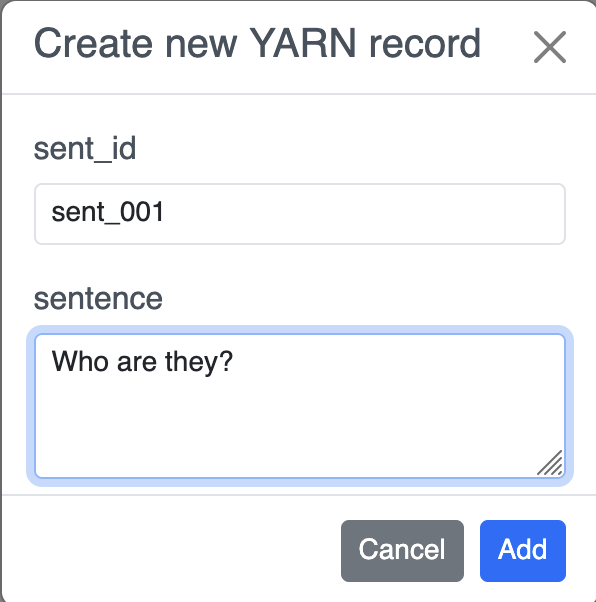
Option A — Create a YARN document
- Select your Sample in the Sidebar.
- Click on options dropdown and select Create new YARN.
- Provide
sent_id(e.g.,sent_001) and the sentence text. - Click Add.
Option B — Upload existing documents
- Select your Sample.
- Click on options dropdown and select Upload existing YARN.
- Choose one or more .json document in base YARN format.
- Confirm Upload.
2. Graph Editor
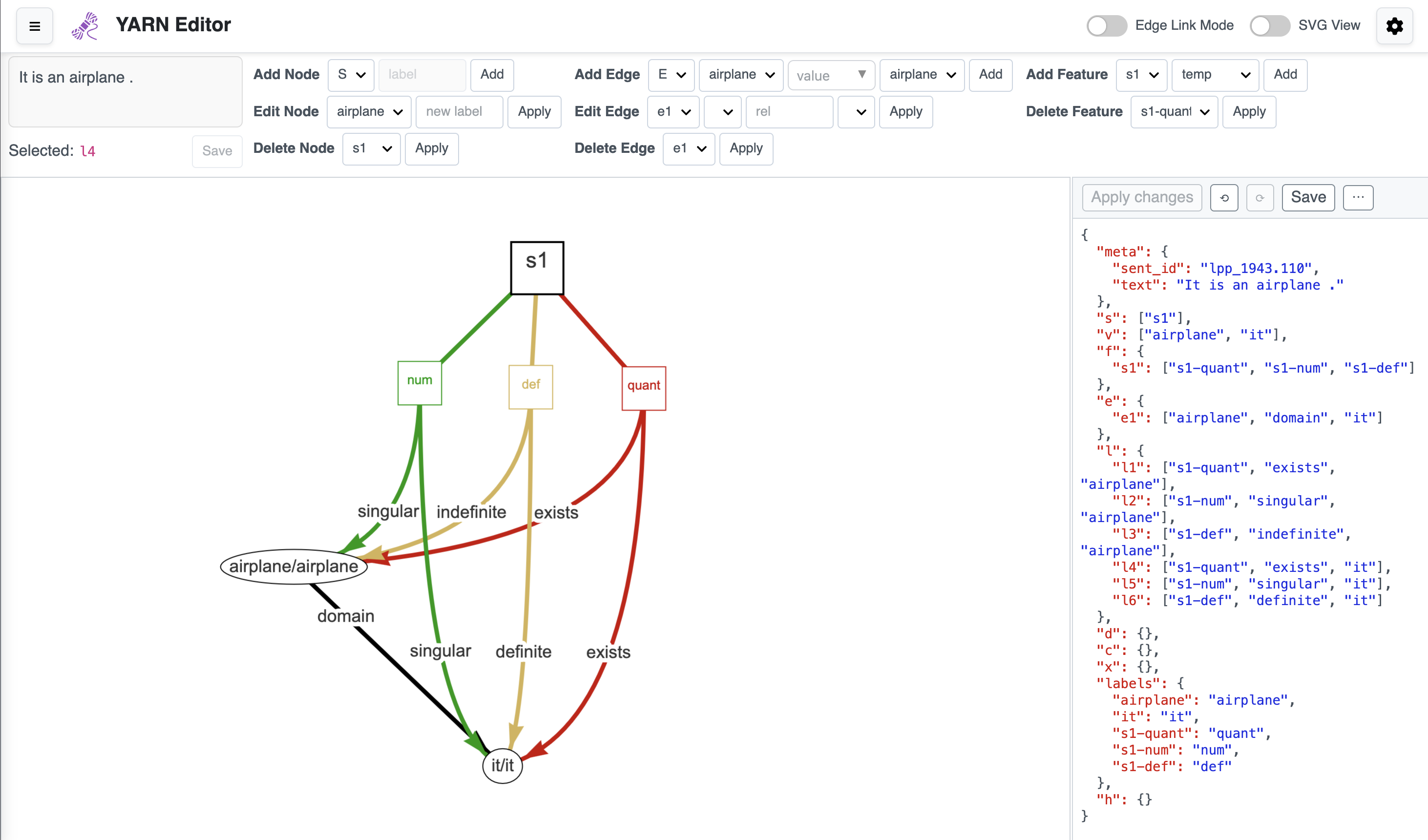
The Graph Editor is the central workspace where you see the visual representation of a YARN document. You can reposition elements and apply edits that are reflected in the document.
2.1 Edge Link Mode (Header Toggle)
For creating edges by connecting nodes and edges in the Graph Editor use Edge Link Mode.

- Click the Edge Link Mode toggle in the header to enable it.
- Click the source node or edge.
- Click the target node or edge.
- In the modal, enter the edge label and confirm.
2.2 Context Menu (Right-Click)
Right-click anywhere in the graph editor to open a context menu. The available actions depend on what was clicked.
Right-click on empty canvas — creating a node
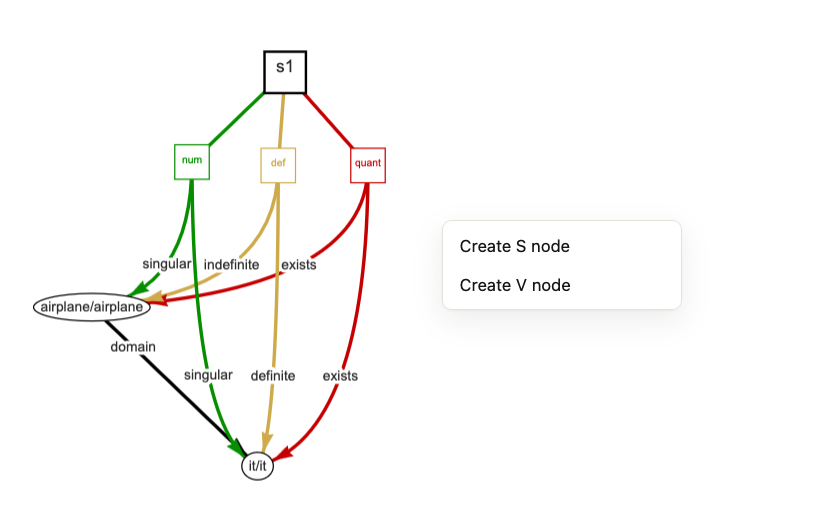
Right-clicking on an empty area of the canvas opens a Create node menu. The new node is placed at the cursor position.
- Create S node — adds an S node at the cursor.
- Create V node — opens an inline label input. Type the label and press Enter or click Create to confirm.
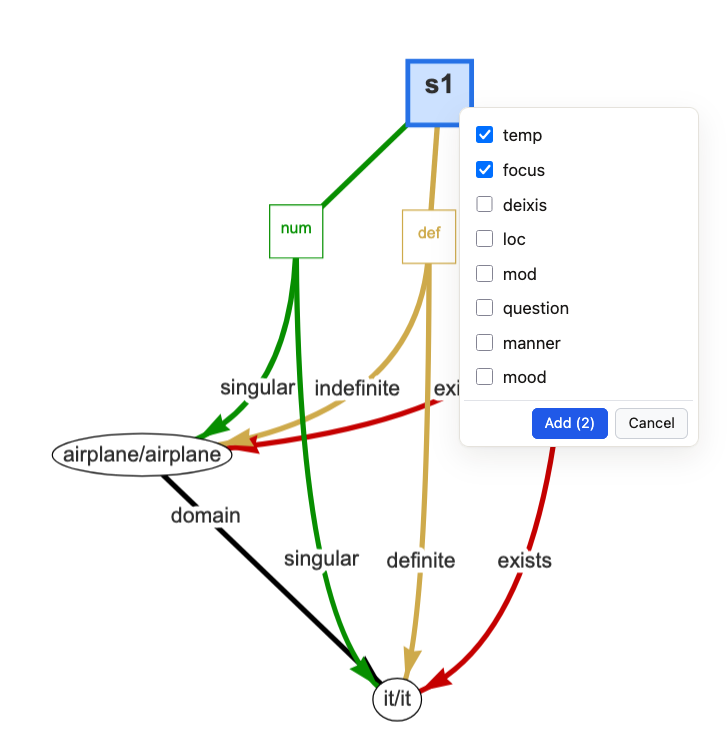
Right-click on an S node — adding feature nodes
Right-clicking on an S node contains an Add features options. It opens a checklist of available options. You can select one or many of and click Add.
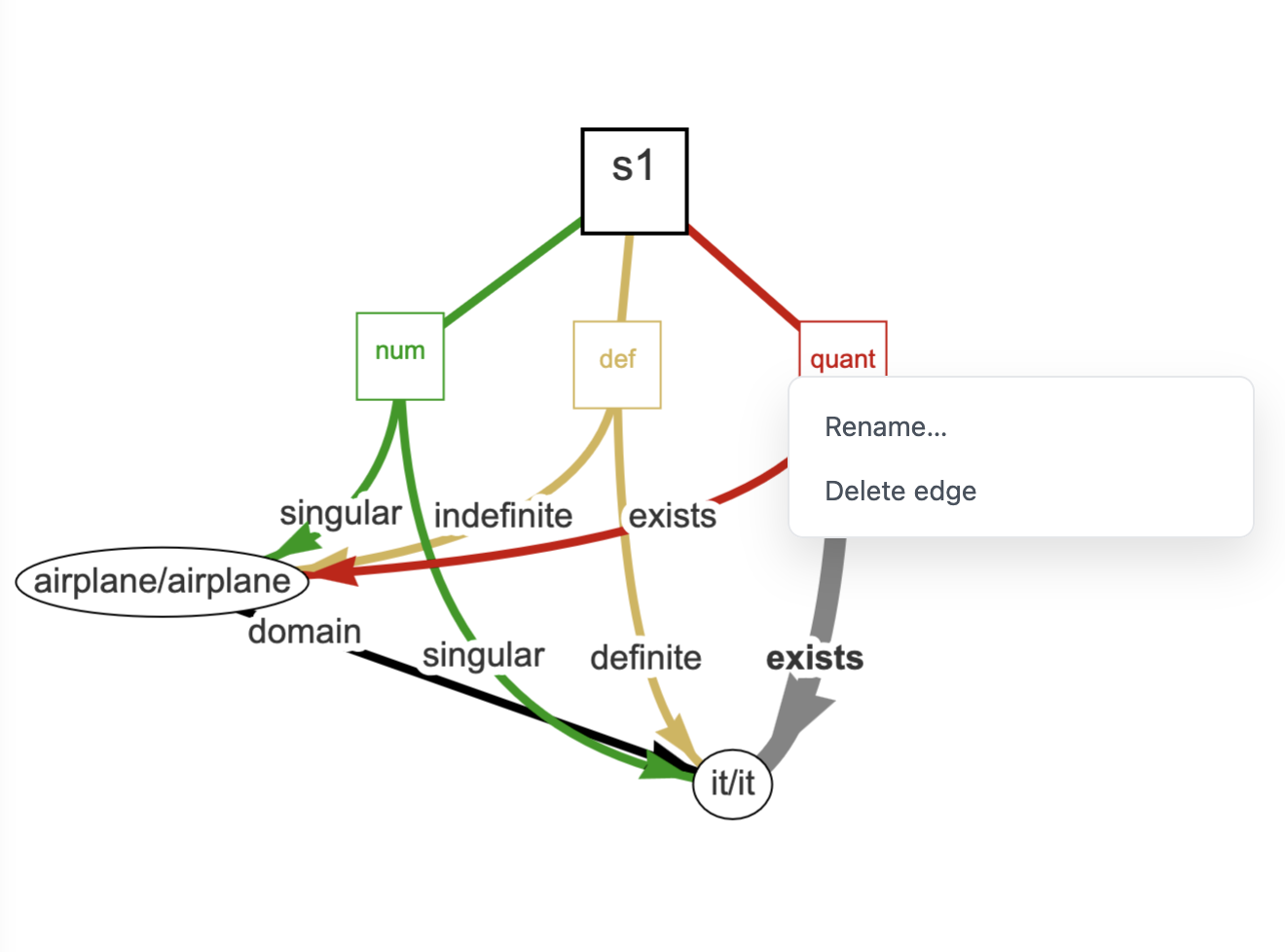
Right-click on a node or edge
Right-clicking on a node or edge opens a context menu with these actions.
- Rename — edit the element label inline.
- Delete — remove the element.
3. YARN JSON Editor
The YARN JSON editor shows a live view of the currently edited document. It has a toolbar with multiple options.
Apply changes
JSON document can be edited directly in the editor, then click Apply changes to apply those edits to the graph. If the content is invalid, an error is shown and nothing is applied.
Undo / Redo
Step backward or forward through recent actions.
Save
Saves the current document to browser storage.
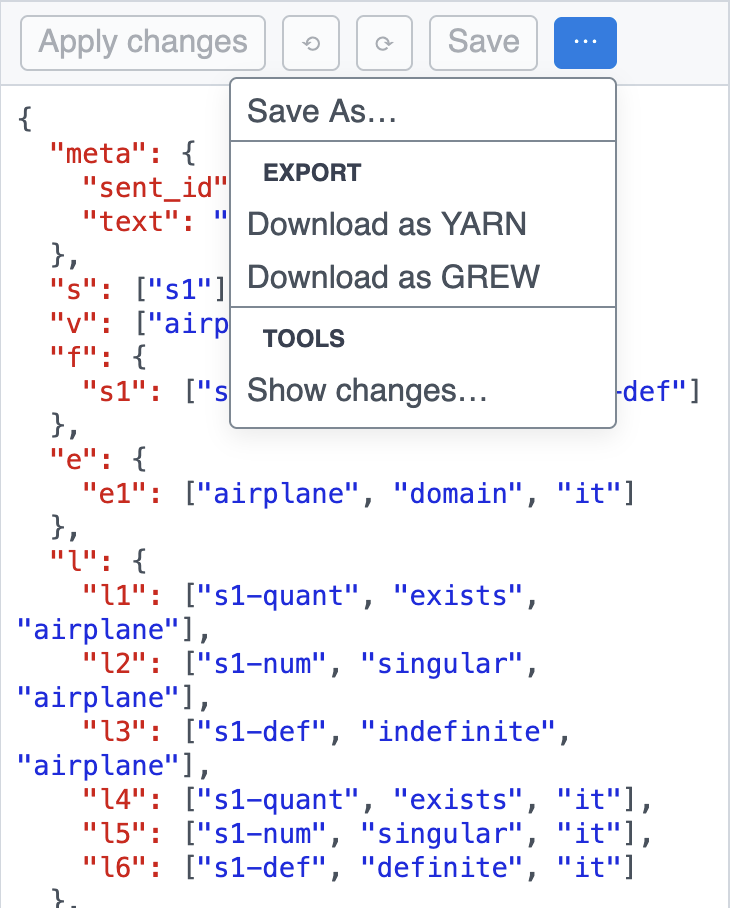
Access the menu via the ⋯ button next to Save.
Save As…
Saves the document with a new name inside the same Sample (creates a copy).
Download as YARN
Exports the current document you see in the editor (not the last saved version) as a YARN JSON file.
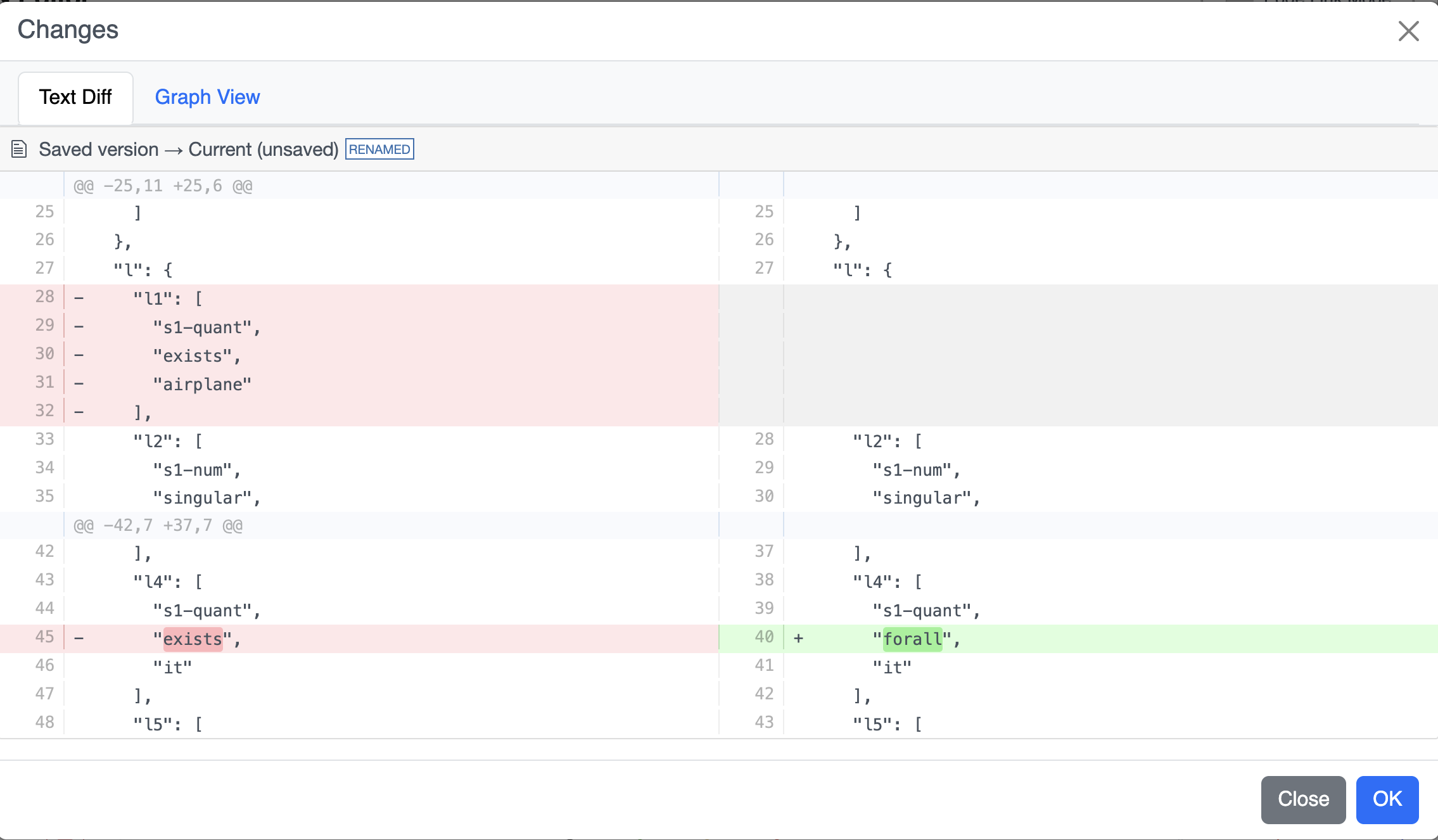
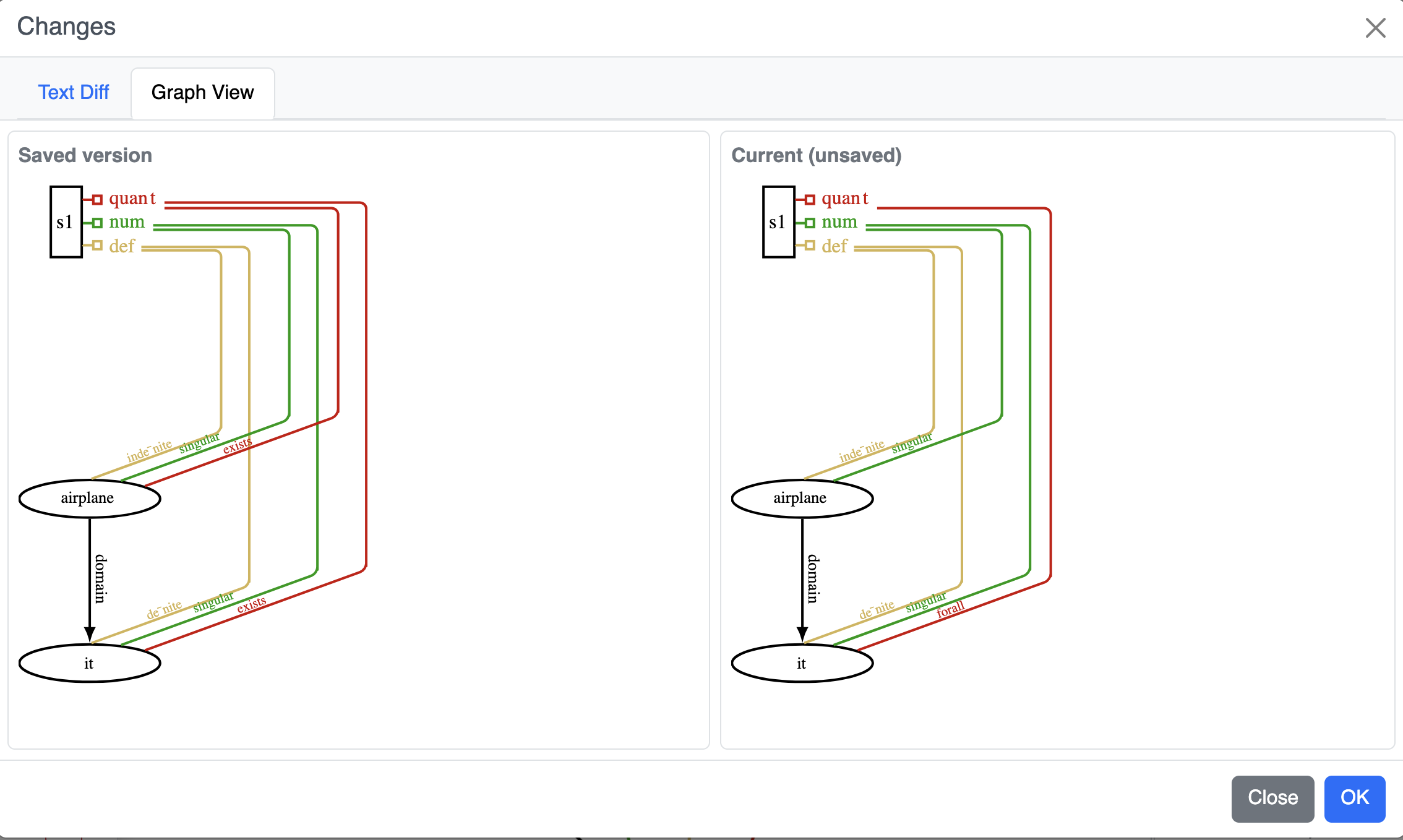
Show changes…
Opens a diff between the last saved version and the current document:
- JSON diff — textual differences in JSON.
- SVG diff — visual differences in the rendered graph.